Get started
A first year on TaxPip, from an empty account to an approved filing pack, for one example company: a short video, then every step in pictures of the real software.
Watch it first
Read what the voice says
A first year on TaxPip, for one example company, from an empty account to an approved filing pack.
Start with your email address. Accept the terms, and ask for a code.
Type in the six-digit code we email you. There is no password.
Search for the company by name or Companies House number.
Check the details that come back, or type them in yourself.
Add the company's Unique Taxpayer Reference now, or leave it until later.
The dashboard names the next step: add your files.
Say which properties the company lets: rent and costs are reported property by property.
Then add the bank account the statements come from.
Drop in a bank statement. It is sorted as it arrives.
It is recognised as a bank statement, and its payments are read.
The software suggests what each payment was for. Nothing is posted until you approve it.
Approved payments move to Done, and each one can be undone.
The reports come straight from the books. A mistake is put right with a reversing entry.
Next, confirm what only you can know, such as the year-end adjustments.
The working papers say, in words, whether the figures are ready.
Add who signs the accounts, what the company does, and its number of employees.
Corporation Tax is worked out from the books, at the rates in force.
When nothing stands in the way, build the pack.
Read the accounts, then approve exactly those files.
Once the pack is approved, its files are locked.
TaxPip does not file anything. You, or your accountant, file using the guide that comes with the pack.
TaxPip is not an accountancy firm, and it does not replace an accountant. No accountant has reviewed it yet. It does not file anything on its own, and it is not registered with HMRC or Companies House. Every name and figure in this video is example data.
Before you start
- An email address you can read now. A six-digit code is sent to it to sign you in; there is no password.
- The company's name or its Companies House number.
- The company's bank statements for the accounting year, as CSV, OFX or PDF files.
- The addresses of the properties the company lets.
- Somebody to file the pack once it is approved: you, or your accountant. TaxPip does not file anything on its own.
About the example
The company in these pictures, Oak & Elm Lettings Ltd, is made up, and so are its two properties, its tenants, its bank statements and the person who signs in. Every figure is example data, and nothing here is a real company or a real person.
The pictures were taken from the running software, one after another, as the steps were followed. The software changes, so your screen may differ a little from them.
The pictures of the Add files page show a notice that no AI reader is set up: the example was made on a copy of the software with none connected. As the notice says, bank exports and statements are still sorted, and any other file asks you what it is.
The steps, one by one
Make an account
Enter your email address and the six-digit code that is sent to it. There is no password.
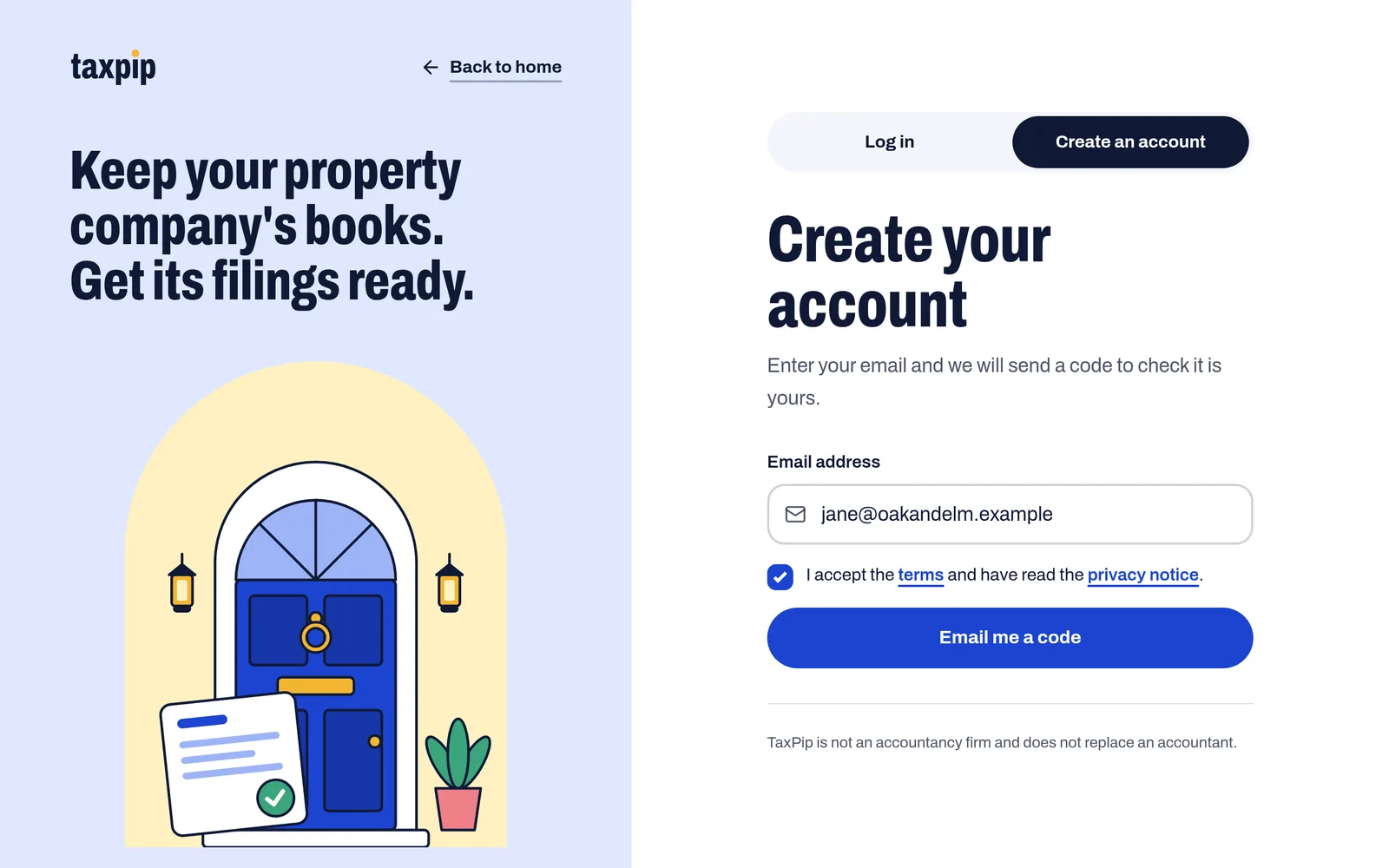
Enter your email address and accept the terms. Example data. 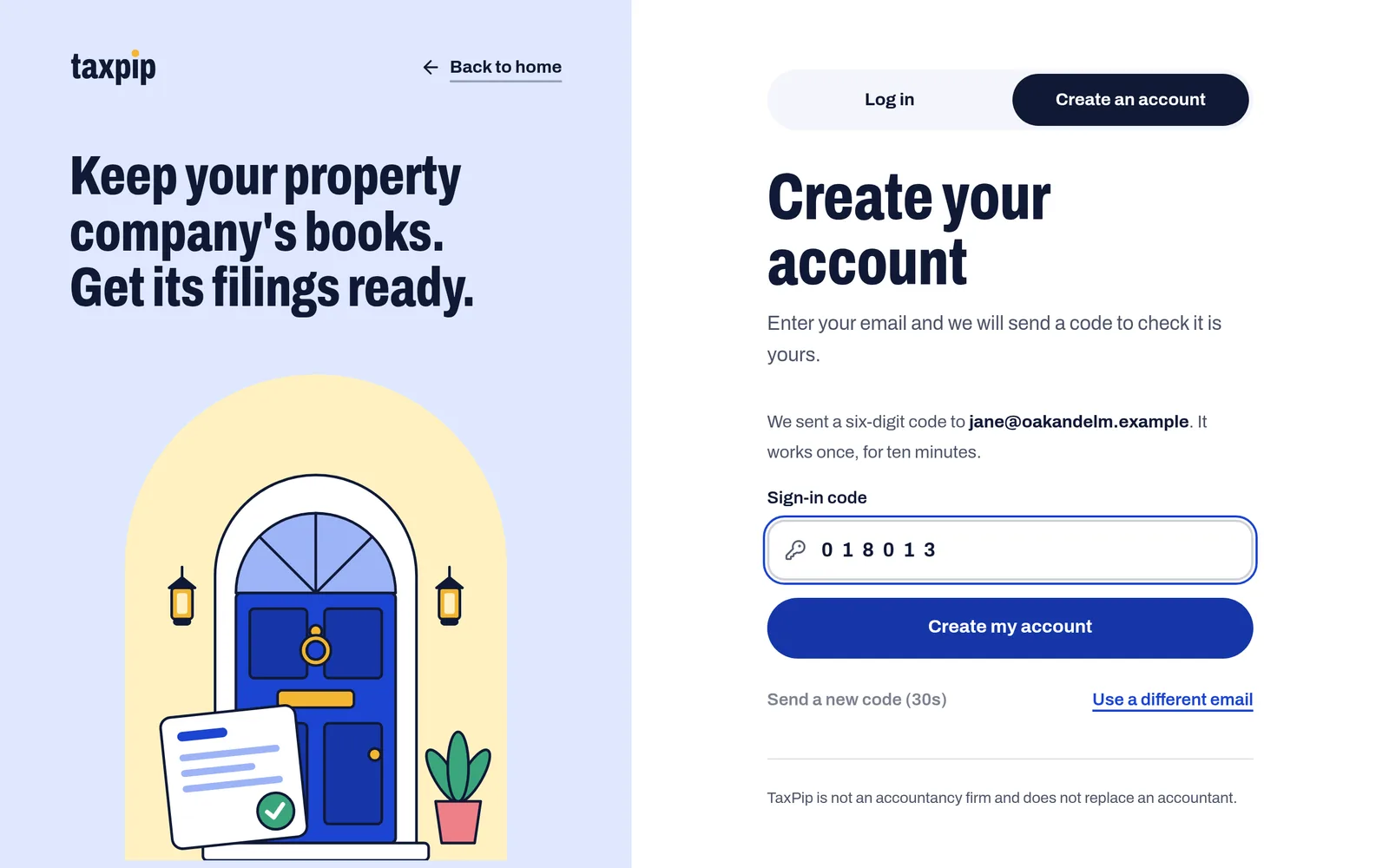
Enter the six-digit code we email you. There is no password. Example data. Add the company
Find the company by its name or number, check its details, and add its tax reference now or later.
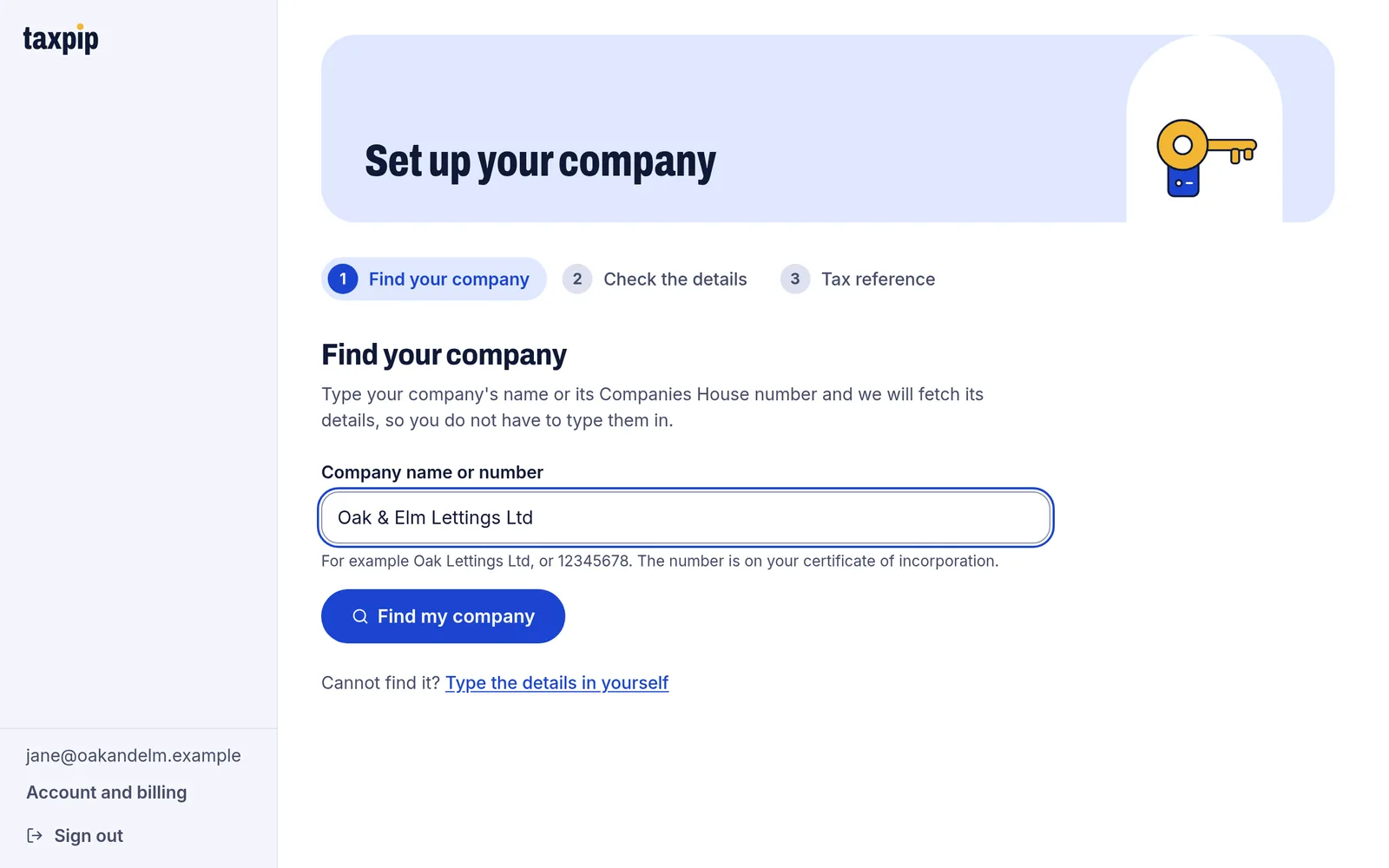
Search for the company by name or number. Example data. 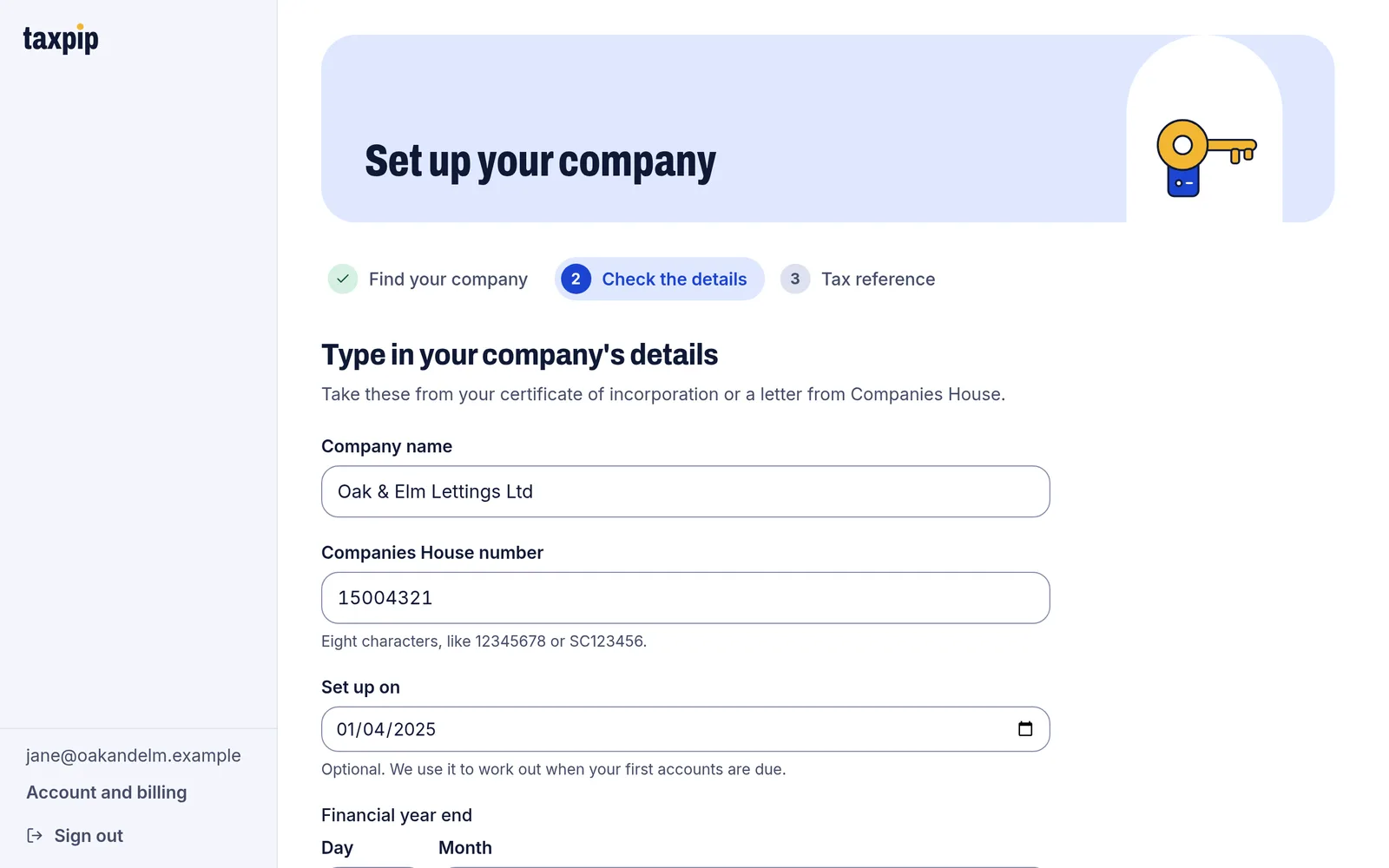
Check its details, or type them in yourself. Example data. 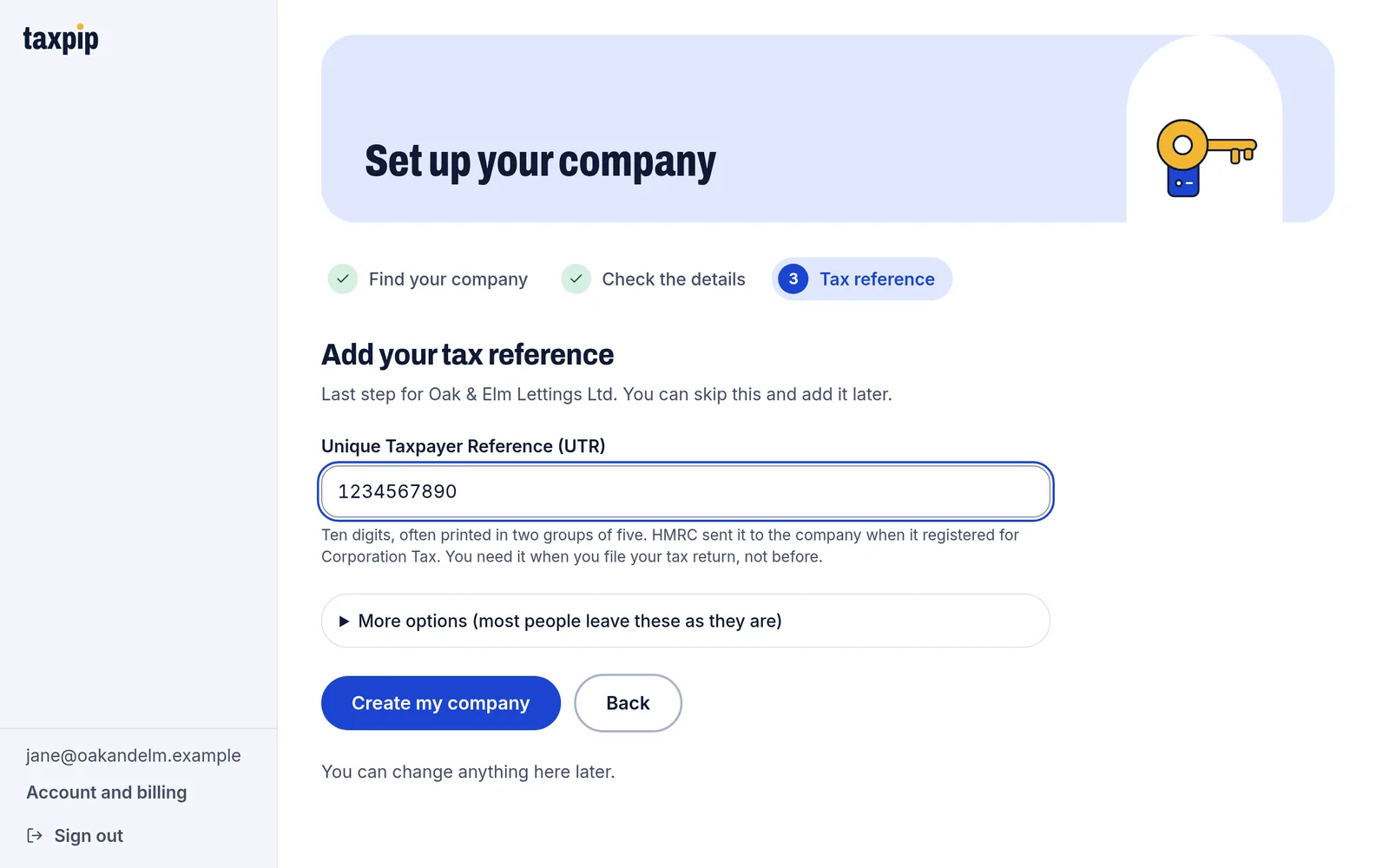
Add its Unique Taxpayer Reference, or leave it for later. Example data. 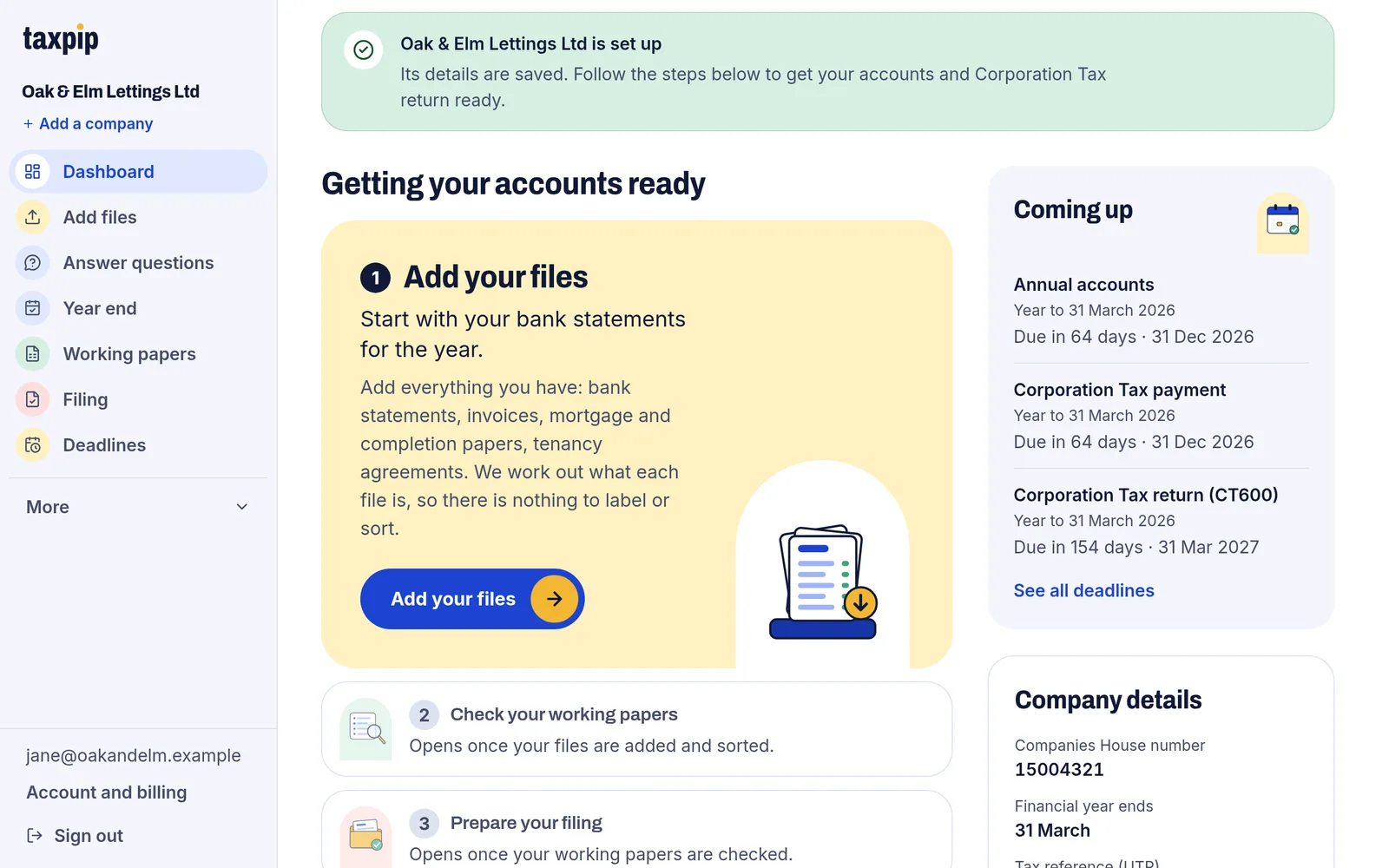
The dashboard names the next step: add your files. Example data. Add its properties and bank account
Rent and costs are reported property by property, so say which properties the company lets. Then add the bank account its statements come from.
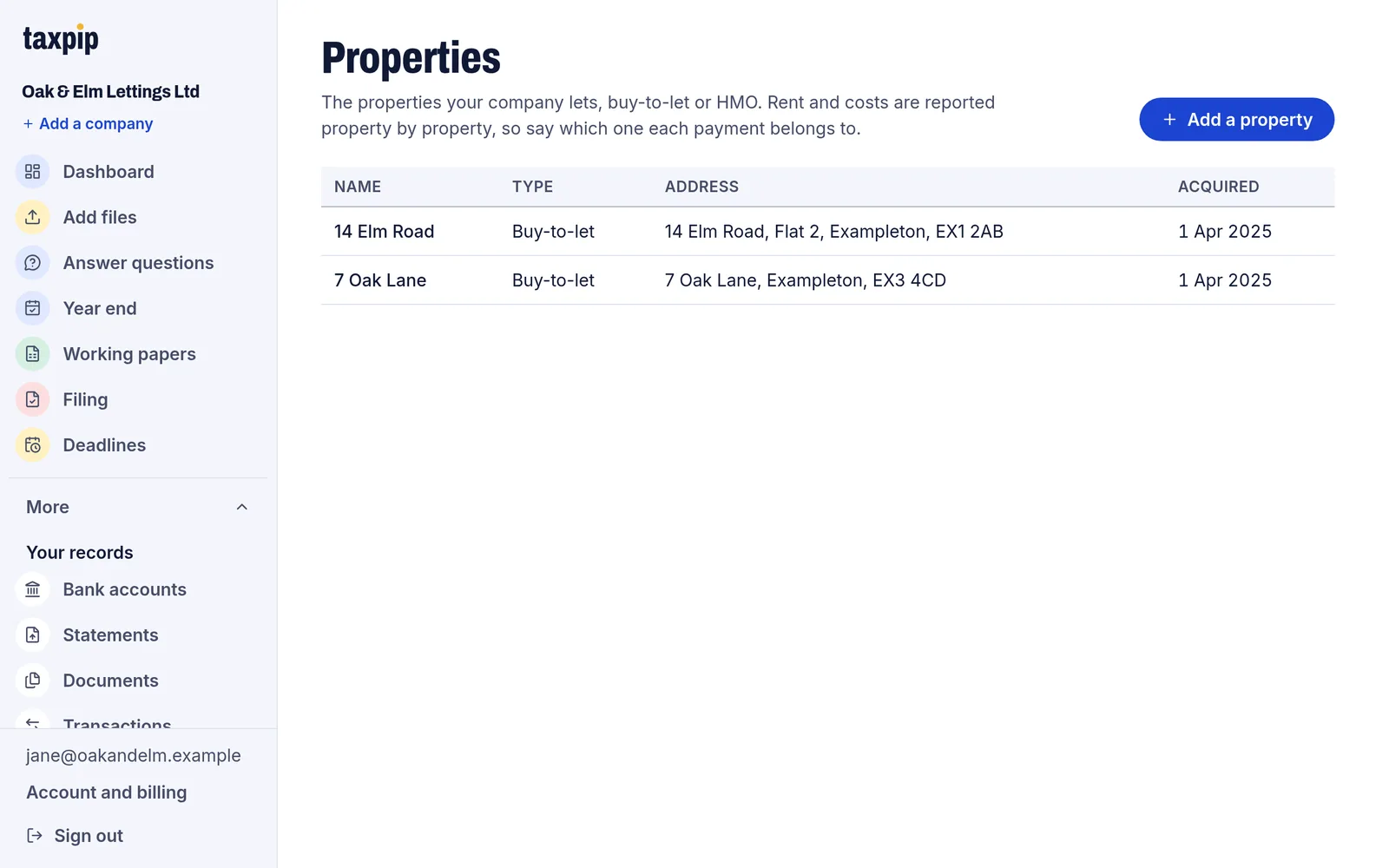
List the properties the company lets. Example data. 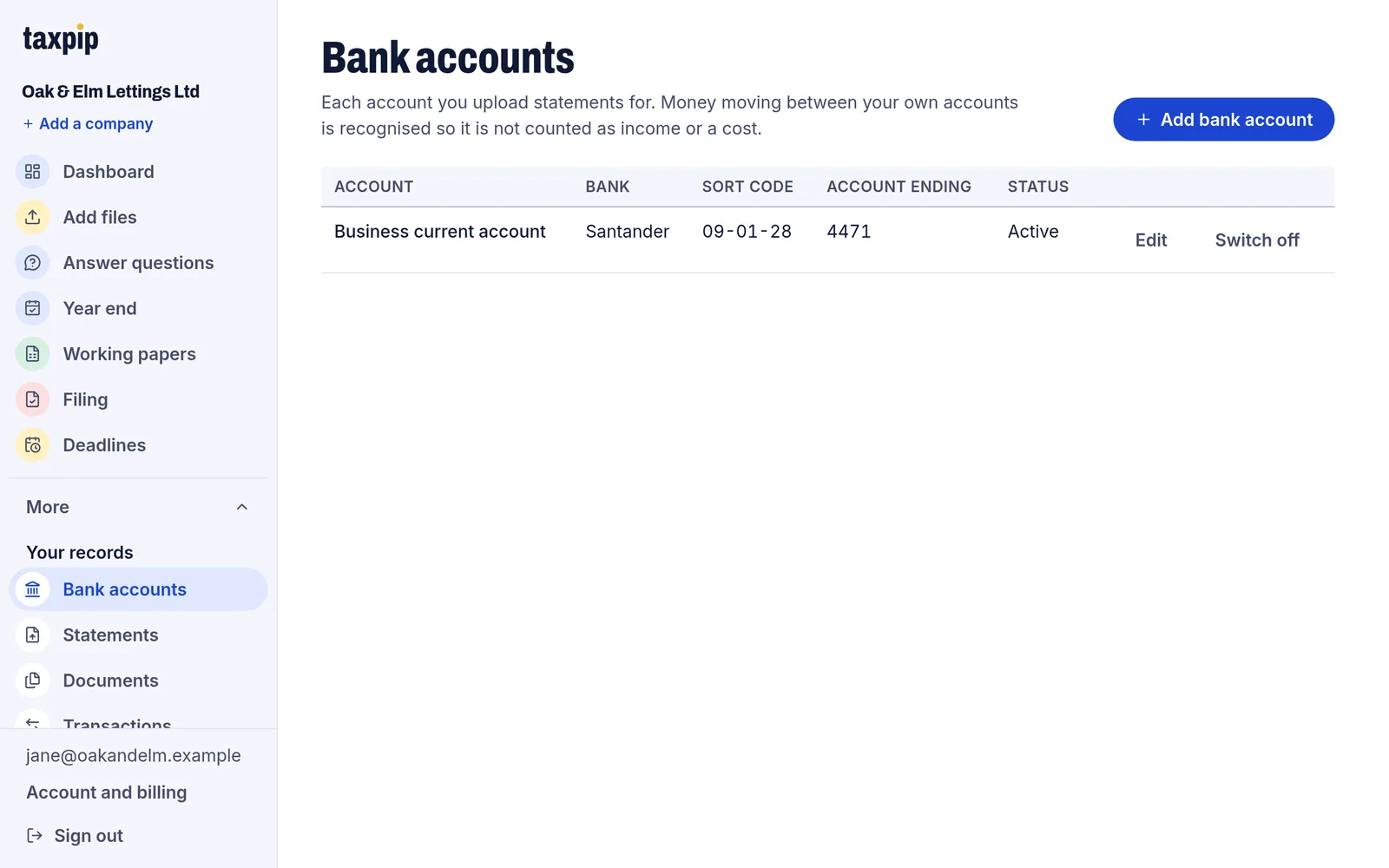
Add the bank account the statements come from. Example data. Add your bank statements
Drop in a statement as a CSV, OFX or PDF file. Each upload is checked, and you can see what was found.
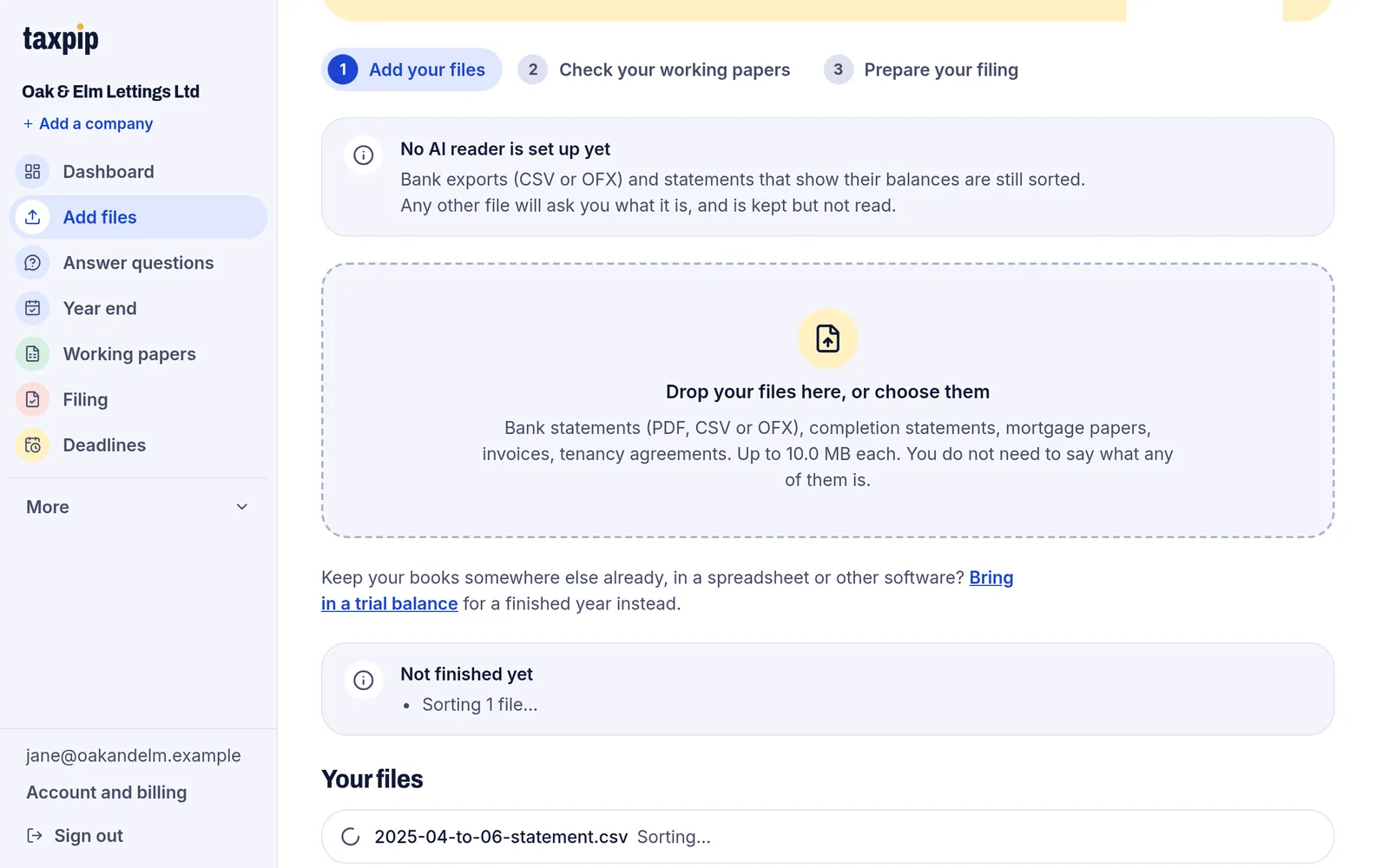
Drop in a statement. It is sorted as it arrives. Example data. 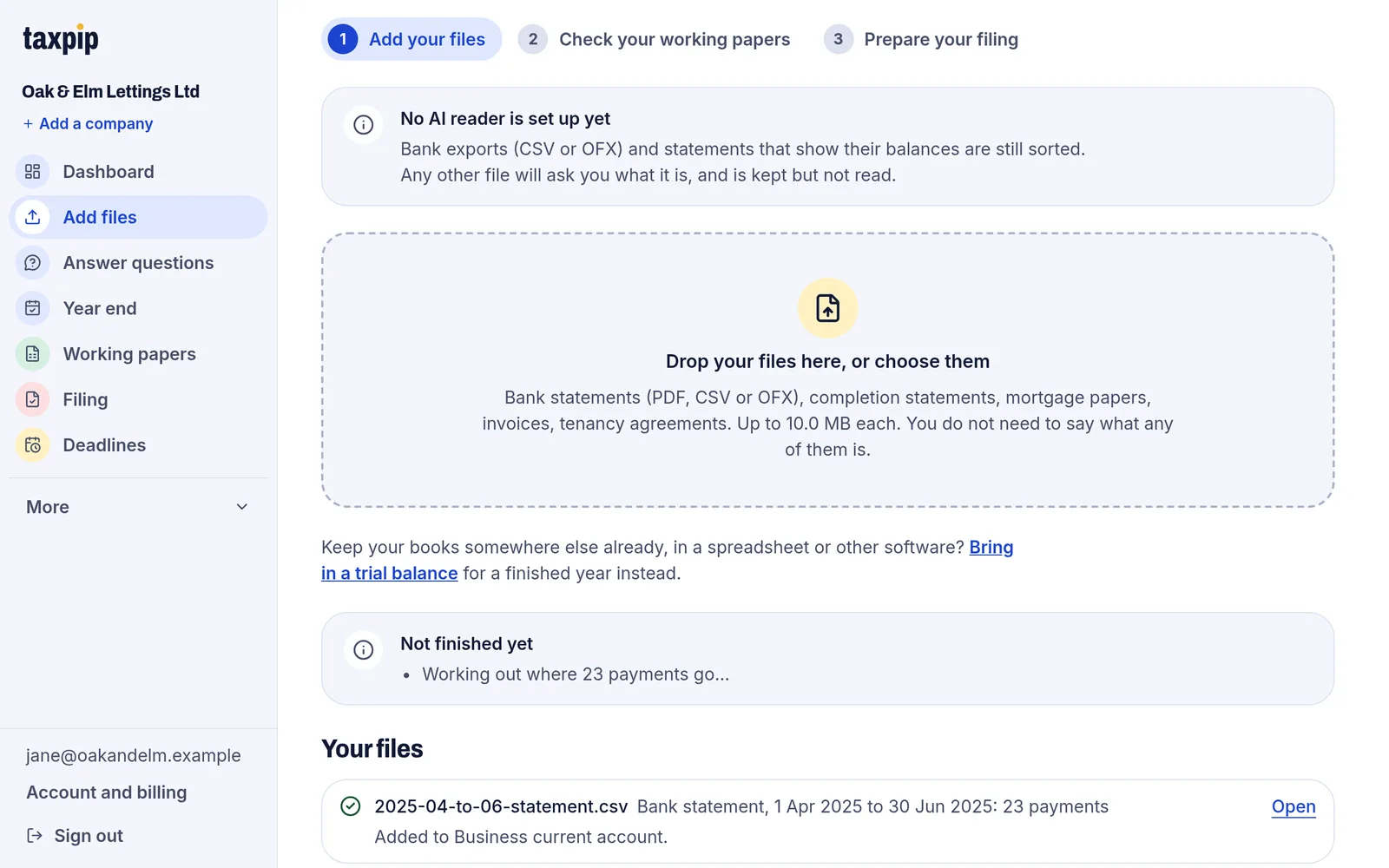
It is recognised as a bank statement and its payments are read. Example data. Answer questions about the payments
The software suggests what each payment was for. Nothing is posted until you approve it, and an approved payment can be undone.
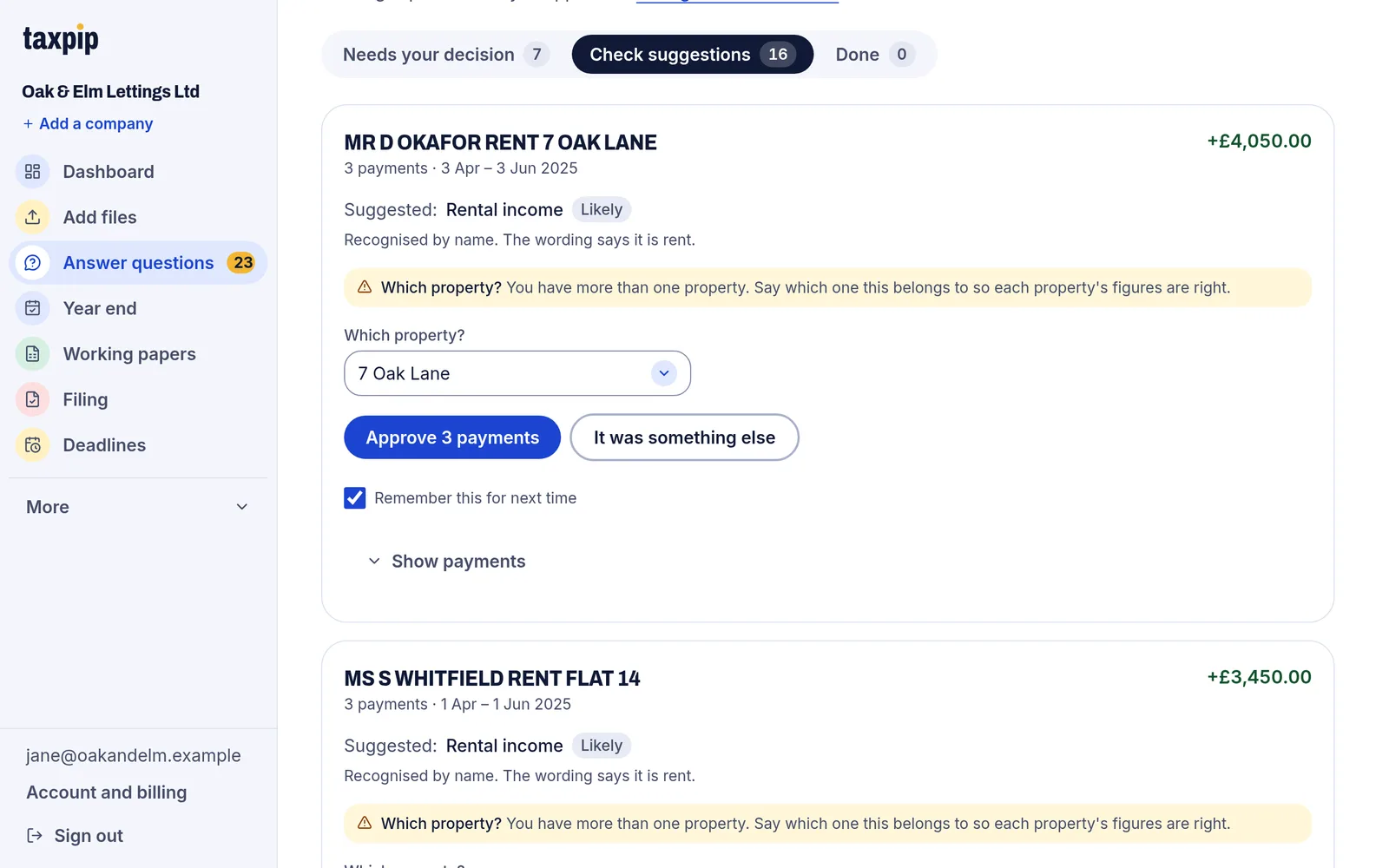
Say which property each rent payment is for, then approve it. Example data. 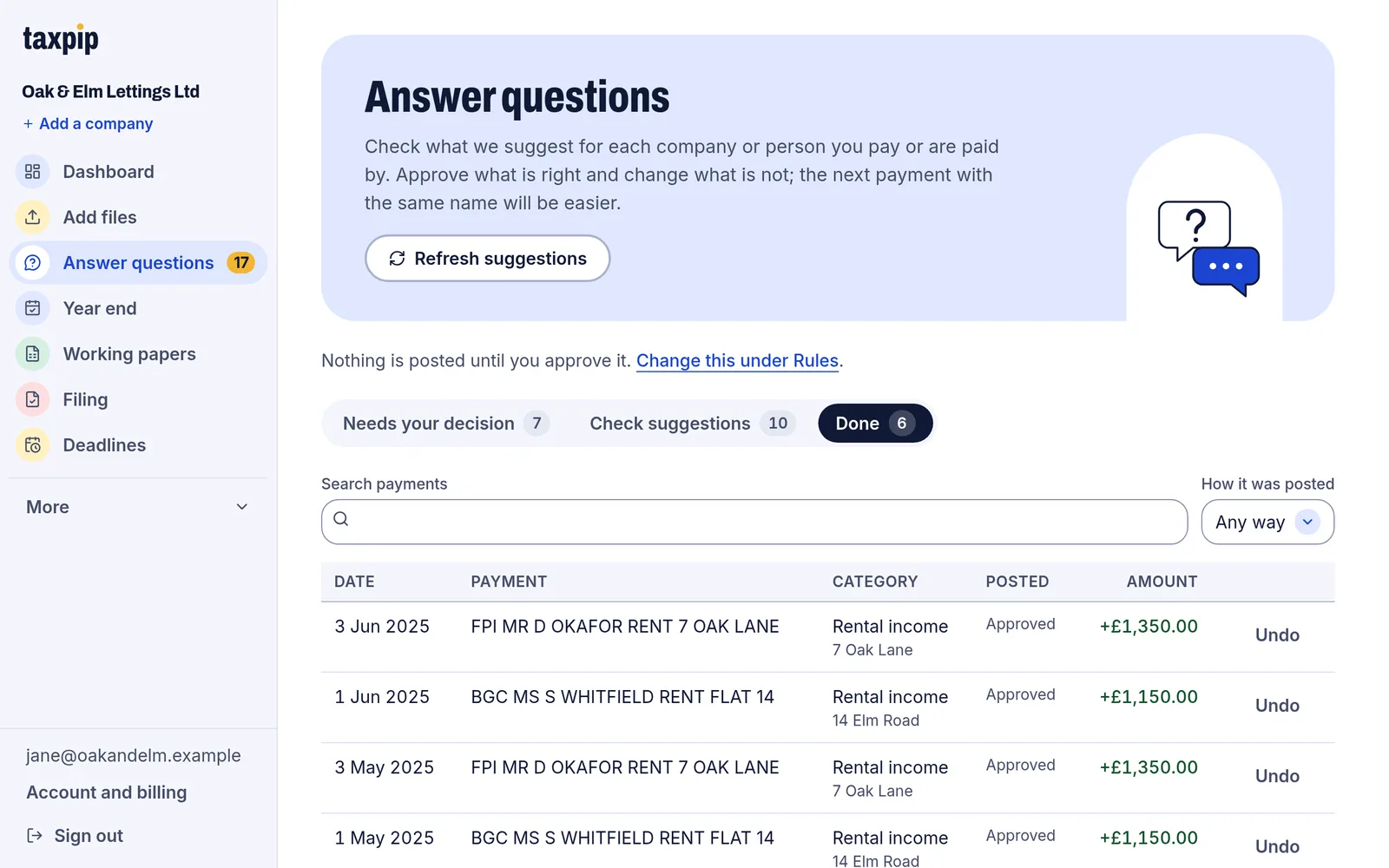
Approved payments move to Done, where each one can be undone. Example data. Read the reports
Entries are double-entry and cannot be edited later. A mistake is put right with a reversing entry.
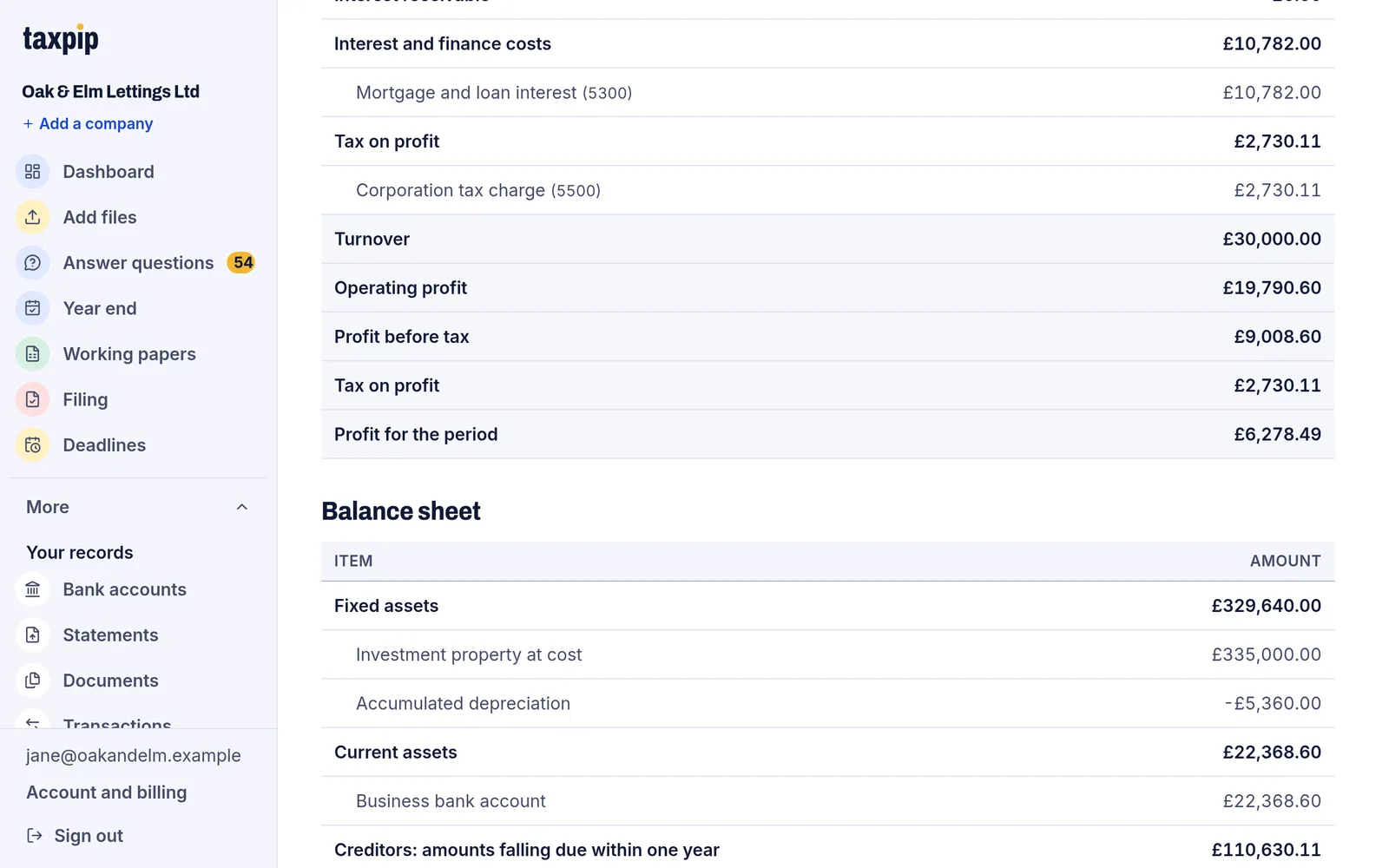
The profit and loss account, worked out from the books. Example data. Answer what only you can
Confirm the facts the books cannot show, such as whether the year-end adjustments have been made and who signs the accounts.
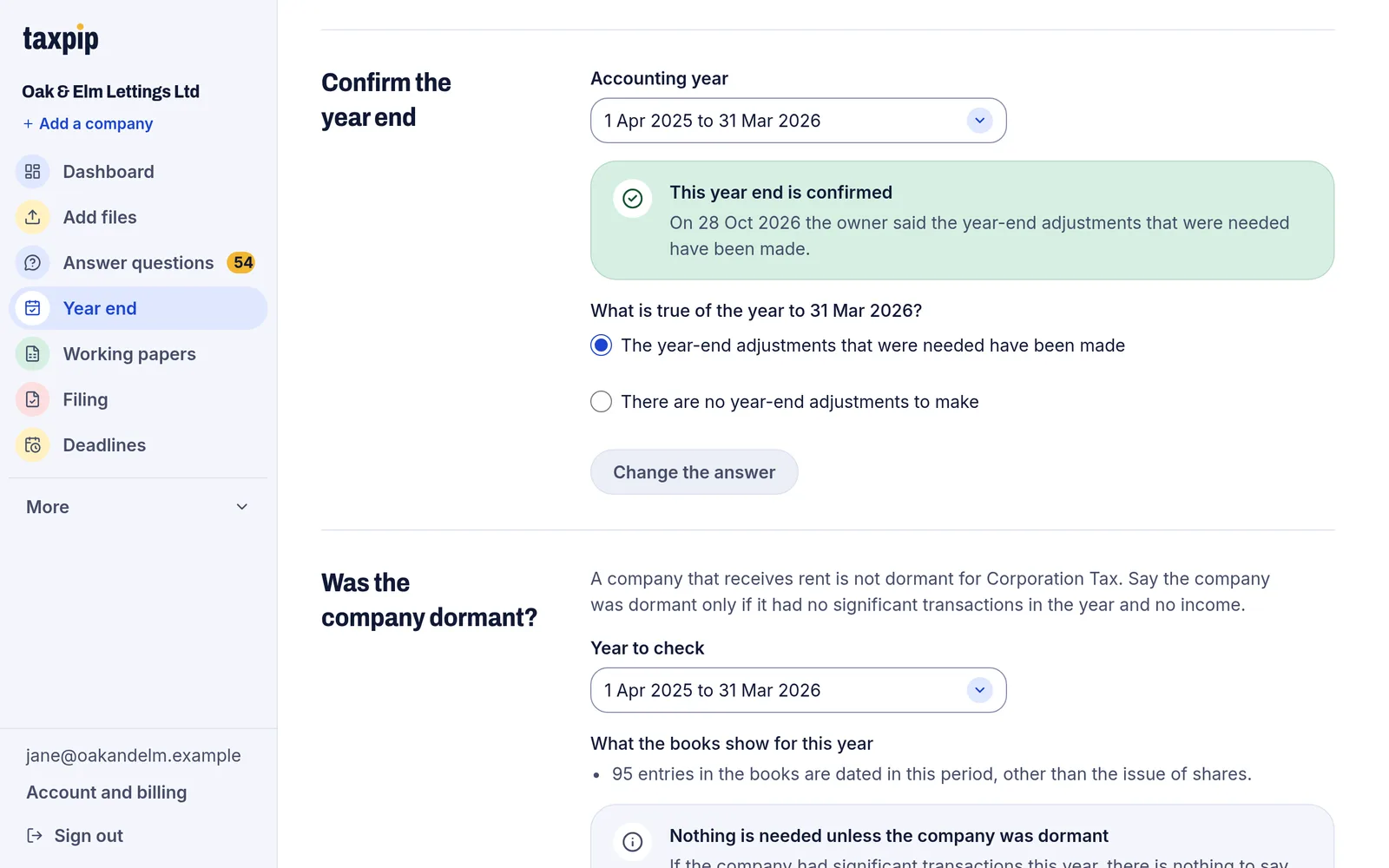
Say whether the year-end adjustments have been made. Example data. 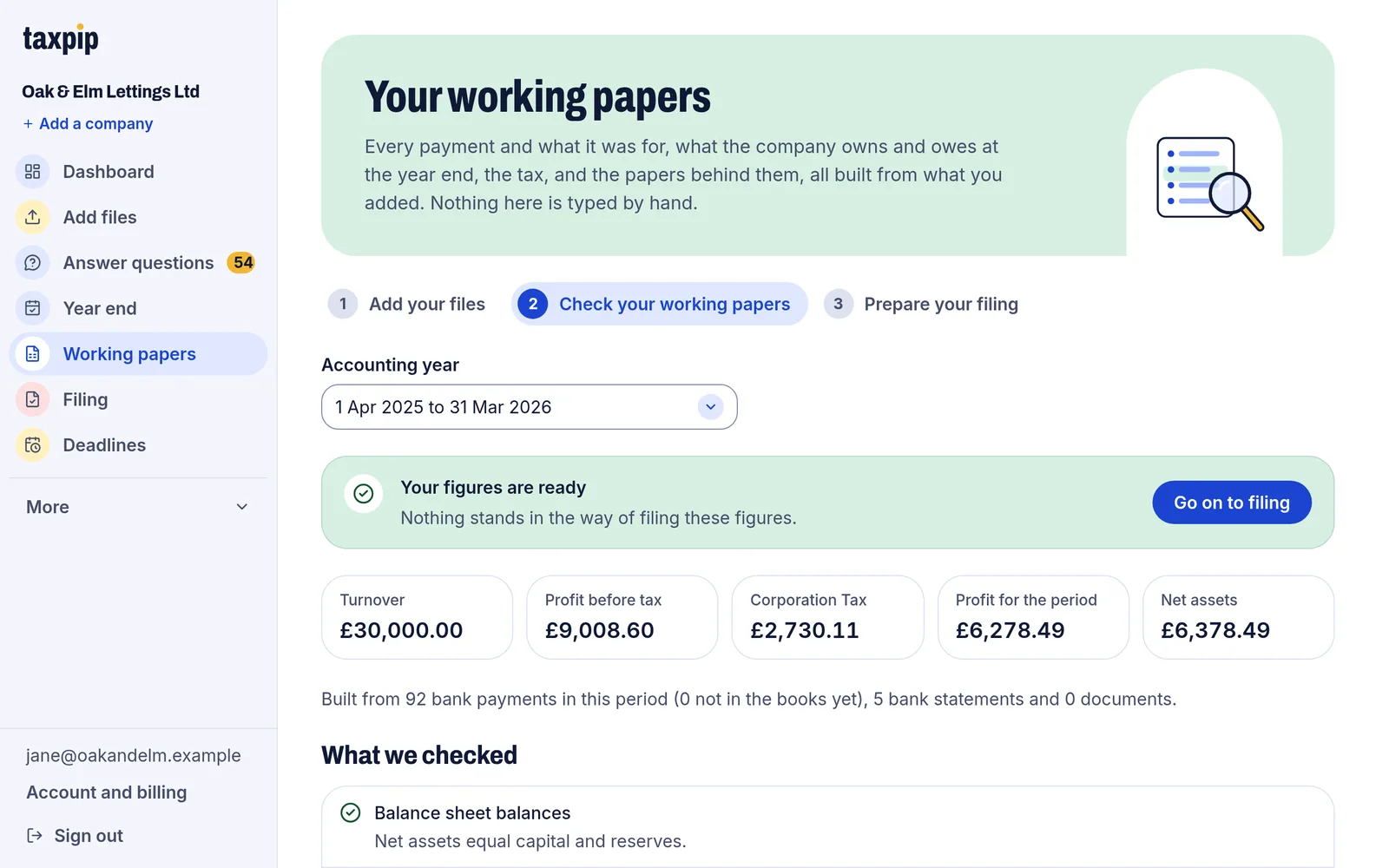
The working papers say in words whether the figures are ready. Example data. 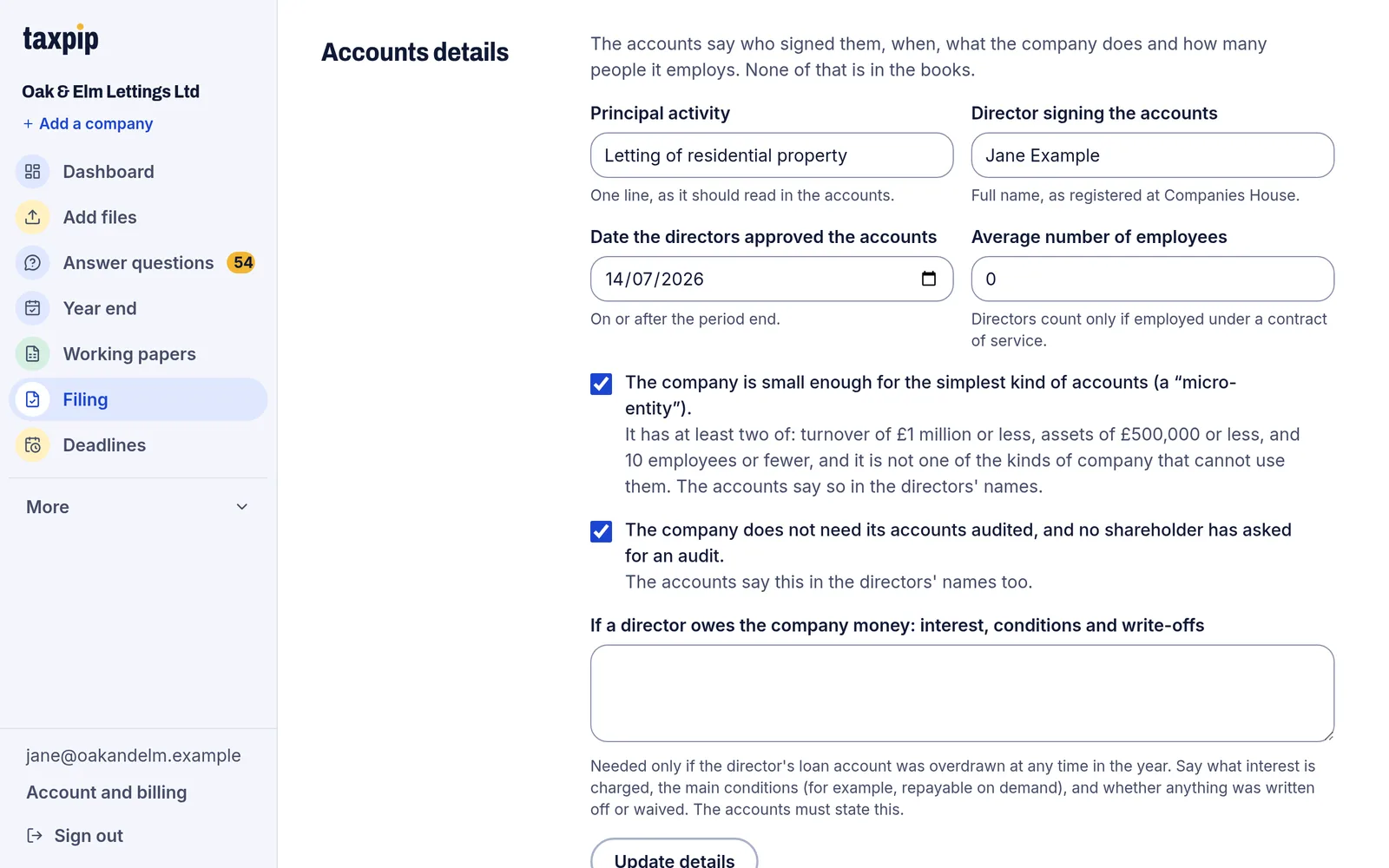
Add who signs the accounts, what the company does and how many it employs. Example data. See the Corporation Tax
Corporation Tax is worked out from the books at the rates in force for the period, and set out as the boxes of the company tax return (CT600).
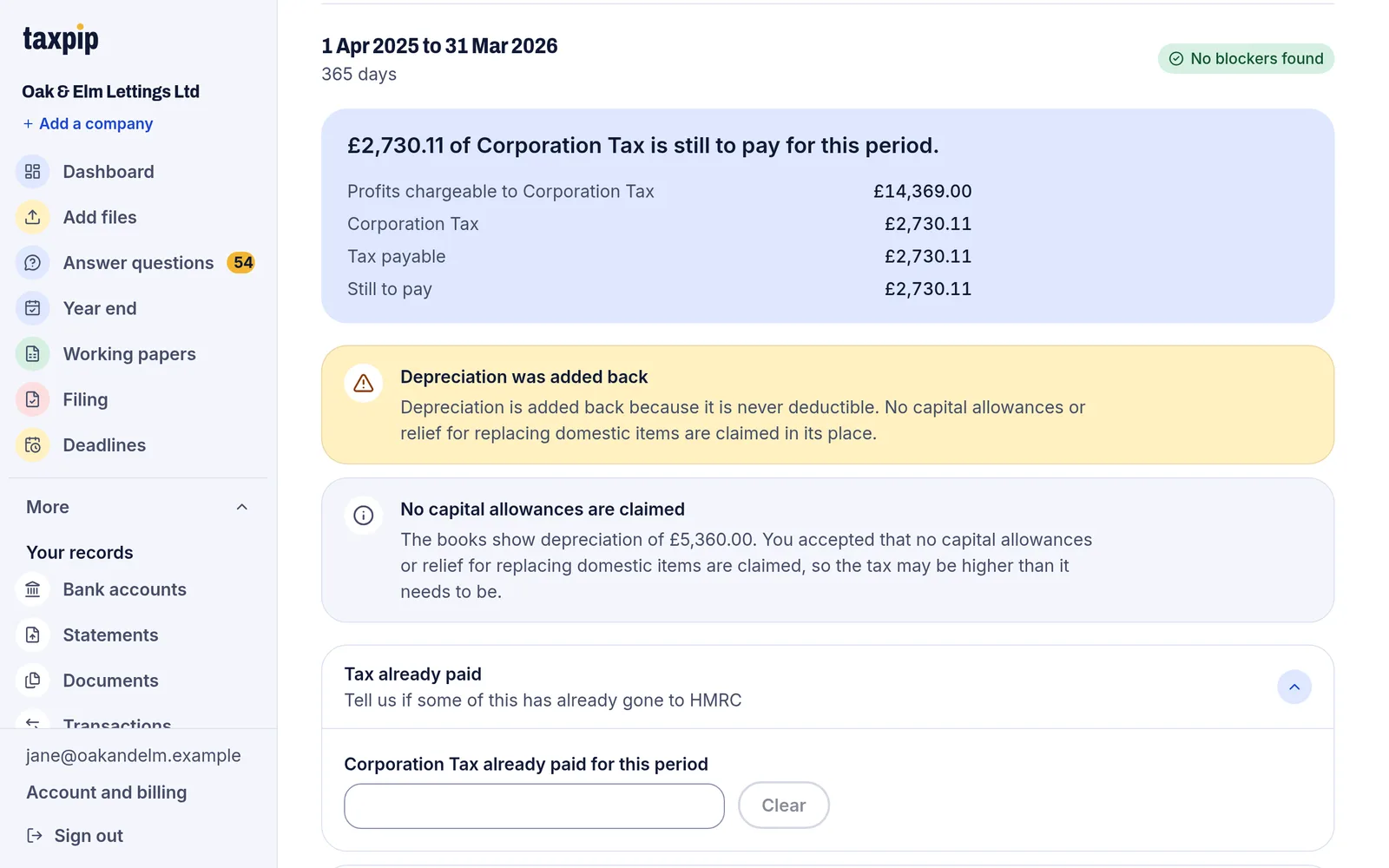
Corporation Tax for the year, worked out from the books. Example data. Build and approve the pack
The accounts and the tax figures are put together as a pack. An owner approves it, and its files are then locked.
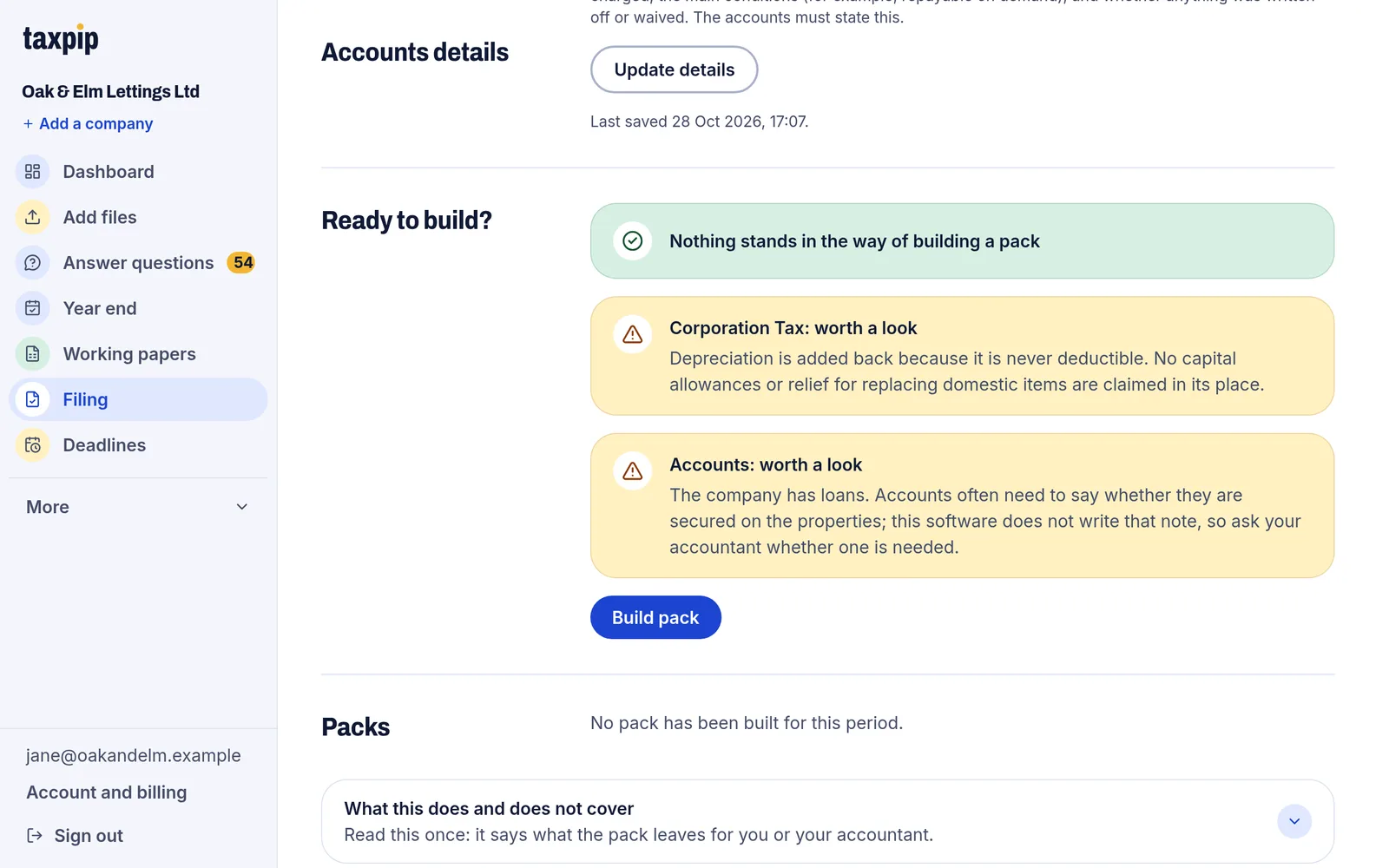
When nothing stands in the way, build the pack. Example data. 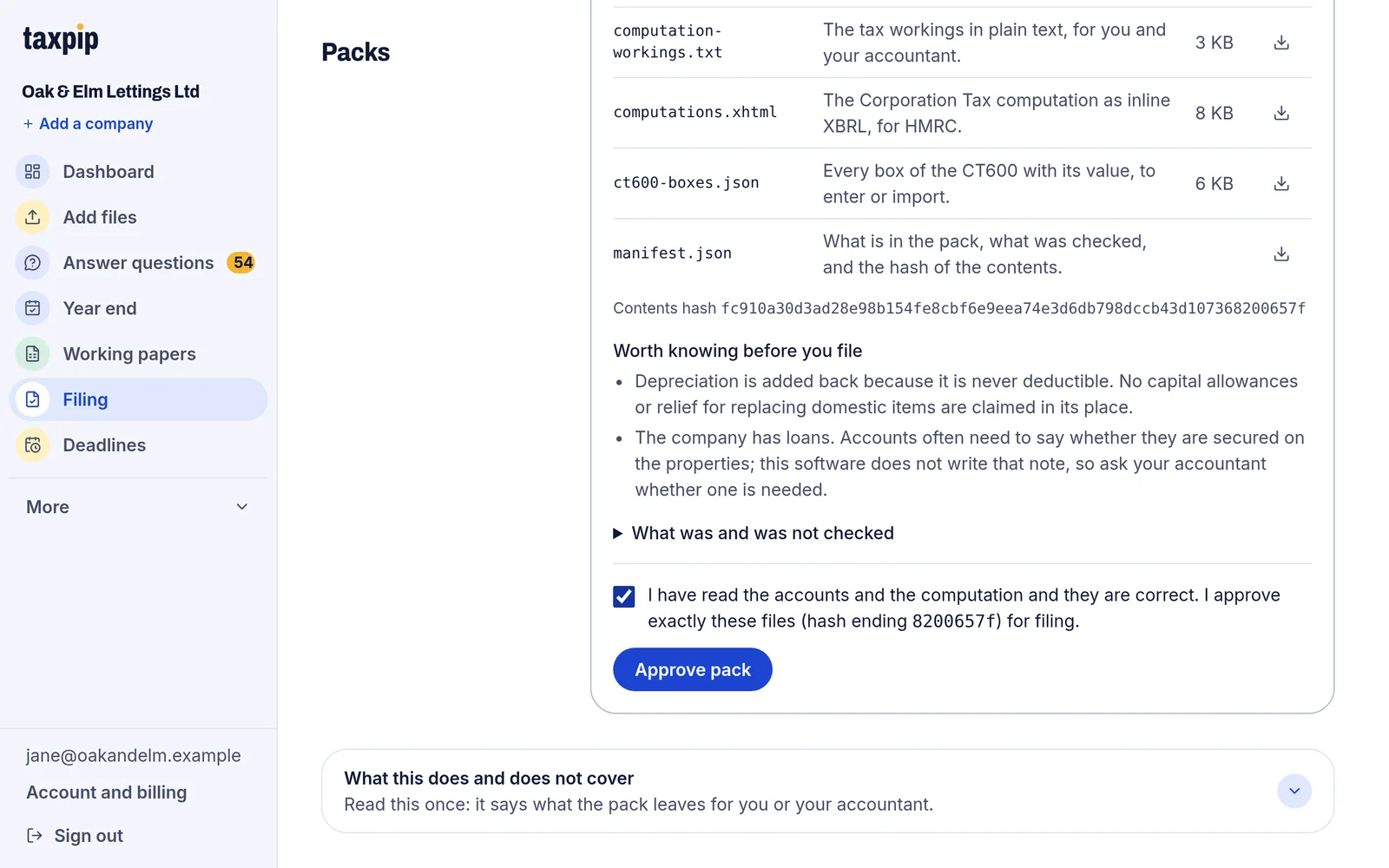
Read the accounts, then approve exactly those files. Example data. 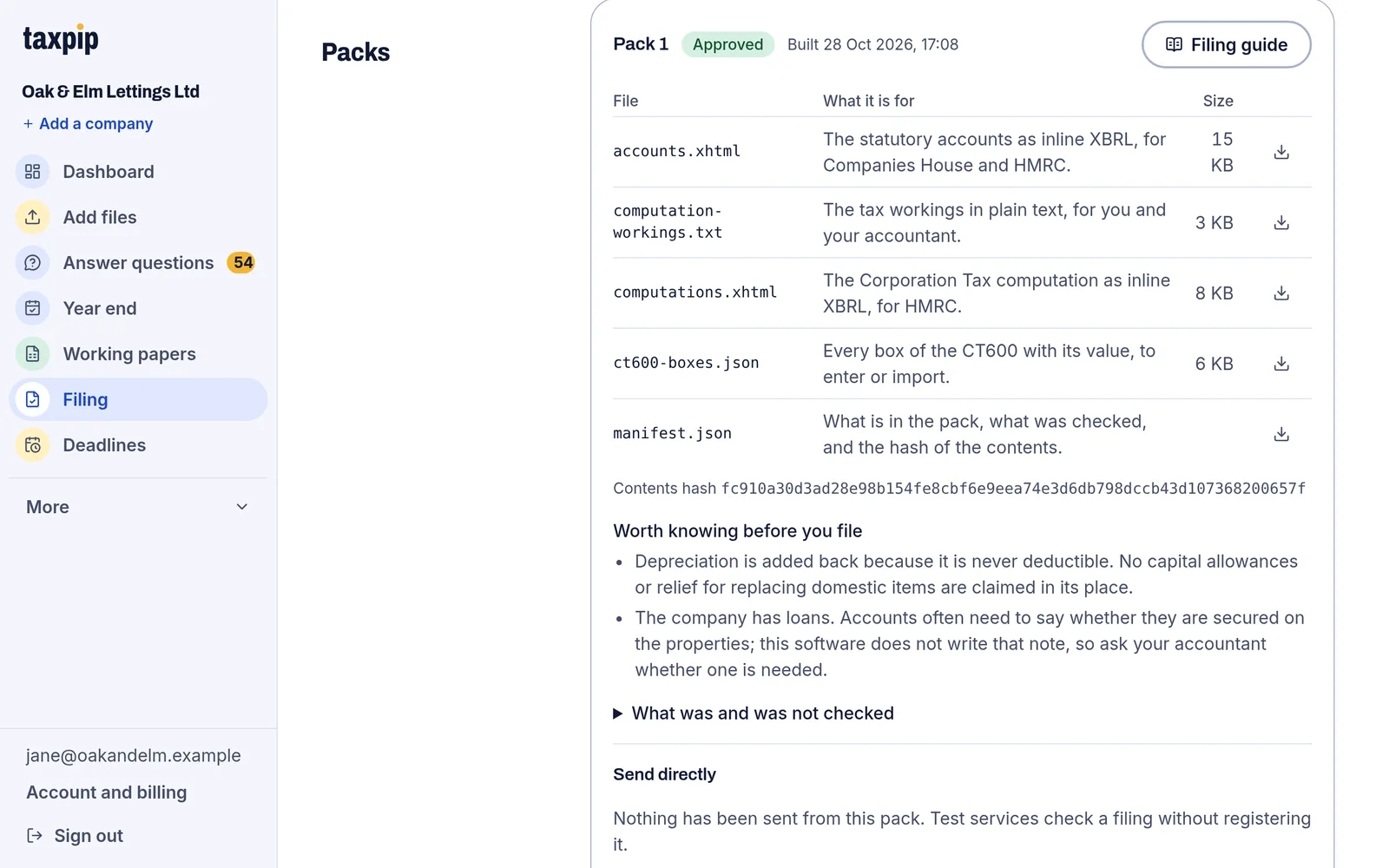
Once approved, the pack's files are locked. Example data. Take the guide to file
TaxPip does not file anything. You, or your accountant, file the accounts and the return with commercial filing software, using the guide and the bundle of files that come with each approved pack.
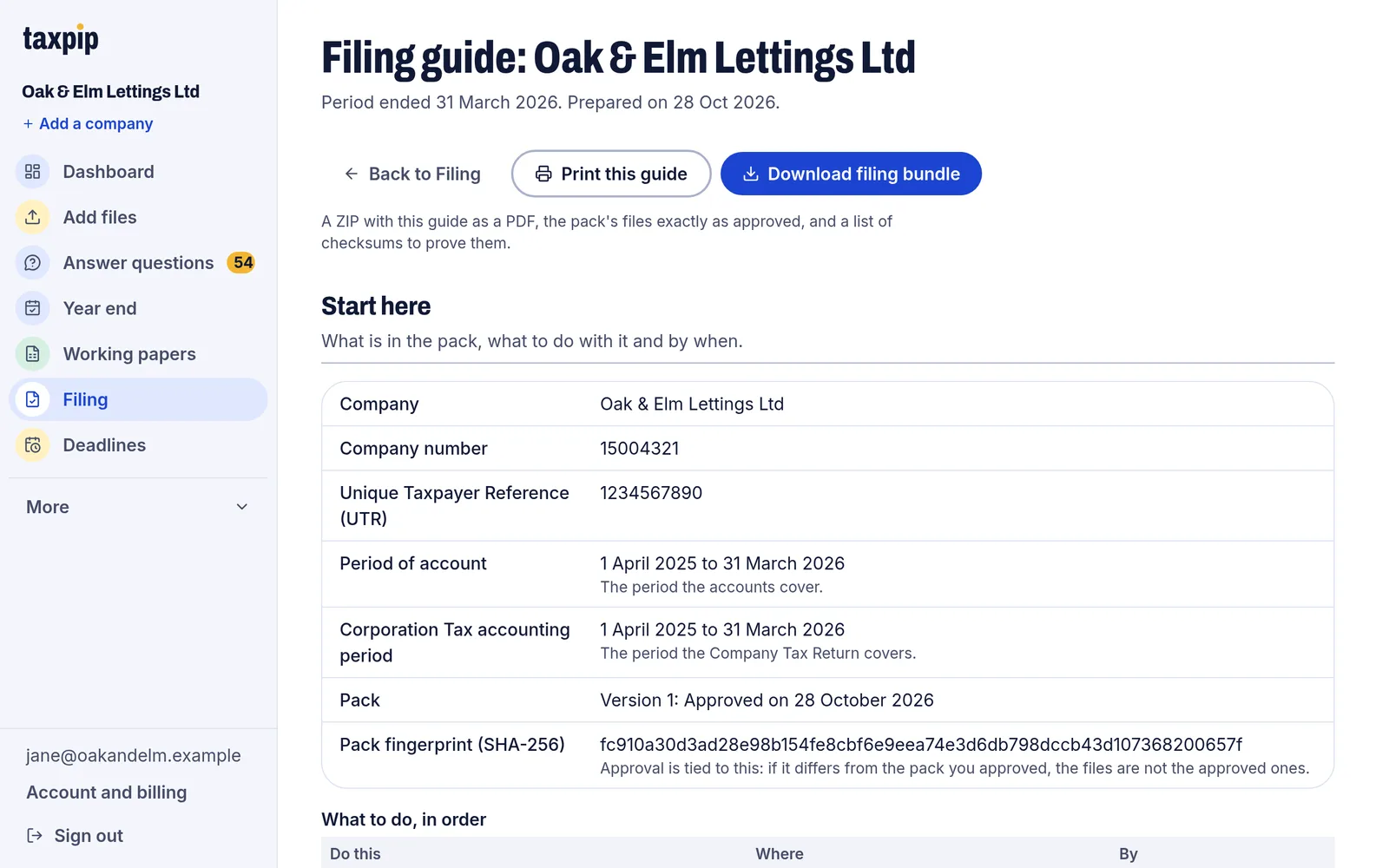
Each approved pack comes with a guide to filing it yourself. Example data.
Try it on your own books
Free during early access. An account takes an email address and a code: there is no password, no card to enter, and nothing is charged.